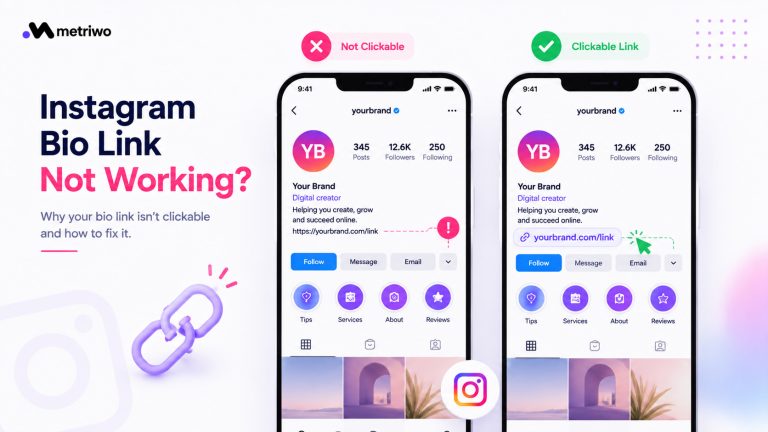


Instagram still won’t let you hit Enter and get a clean new line, in your bio or in a caption. Type it up nicely, save it, and everything squishes into one block. It’s been like this for years, and it’s still one of the most annoying quirks on the platform, but in 2026 there are a couple of methods that reliably work on iPhone, Android, and desktop.
Copy this into a blank line whenever you need to force a break, it’s an invisible character Instagram reads as content:
Clean formatting isn’t just cosmetic either. It makes your profile more readable, keeps people on your post longer, and honestly just looks more professional. If you’re already tracking numbers, Metriwo’s analytics will show you the engagement difference between a wall of text and a well spaced caption pretty quickly.
How to Go to the Next Line in Your Instagram Bio
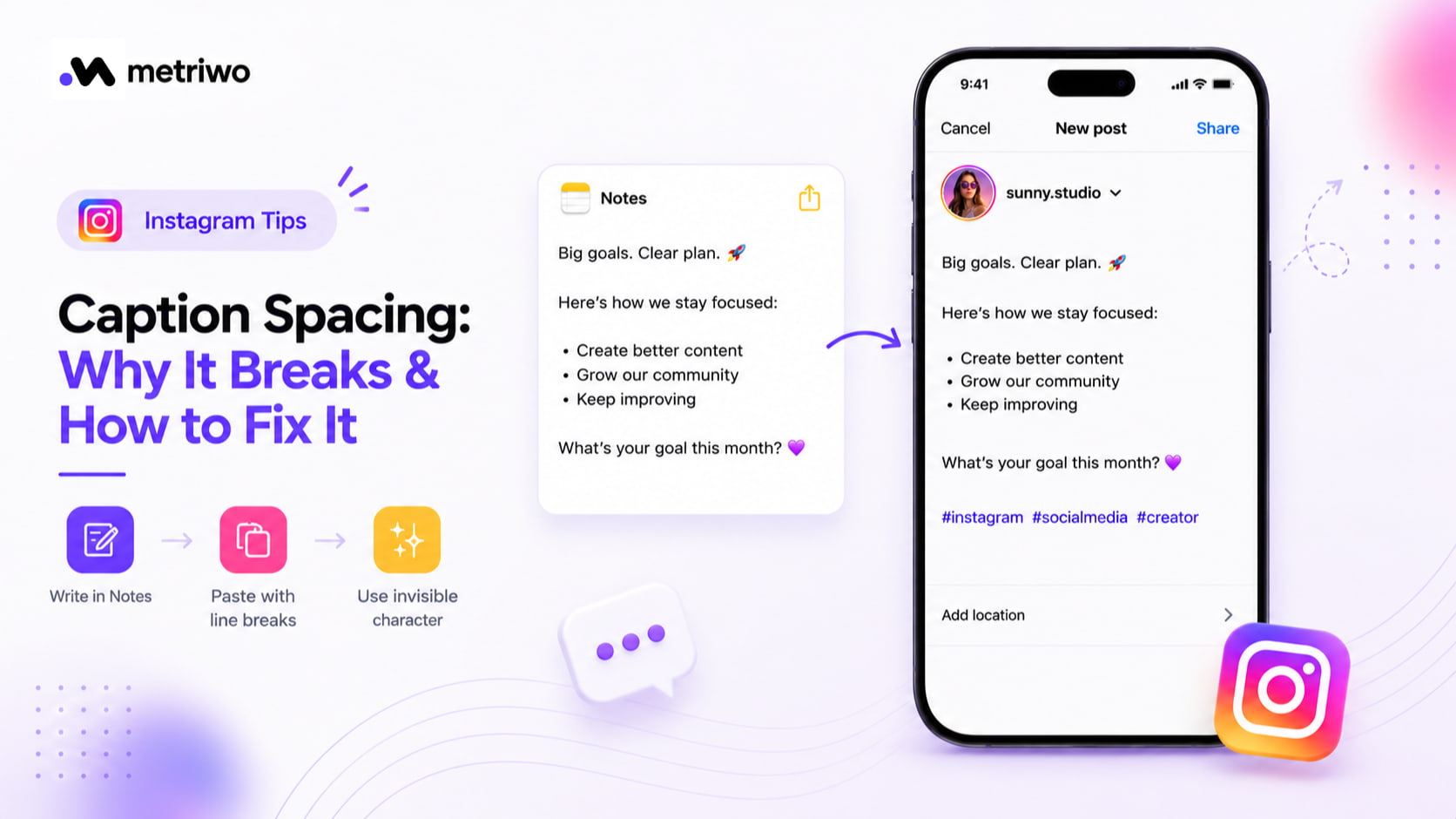
Open Notes (or any plain text app) and write your bio exactly how you want it spaced.
Copy the whole thing.
Paste it into the bio field in your Instagram profile settings.
If a line still collapses, paste the invisible character above on its own line to hold the space. On desktop, log into instagram.com, go to Edit Profile, and paste there instead, it tends to be the most consistent option of the three.
Keep the total under 150 characters, and preview on mobile after saving since desktop formatting doesn’t always translate.

Once it’s spaced properly, the next thing worth fixing is what it actually says. If you haven’t nailed the copy yet, our guide on writing an Instagram bio covers that.

Instagram Caption Spacing: Why It Breaks and How to Fix It
Instagram’s caption field treats a plain line break as whitespace and often trims it when you save, which is why your carefully spaced caption comes out flat. Same fix applies: write it in Notes first, paste it in, and drop the invisible character on any line that still collapses.
A few people also post through the Facebook composer or a third party scheduler since those sometimes preserve spacing better than typing directly in the Instagram app. If you’re scheduling ahead anyway, Metriwo’s post scheduler keeps line breaks intact and lets you preview exactly how it’ll render before it goes live.
Three habits that make a real difference:
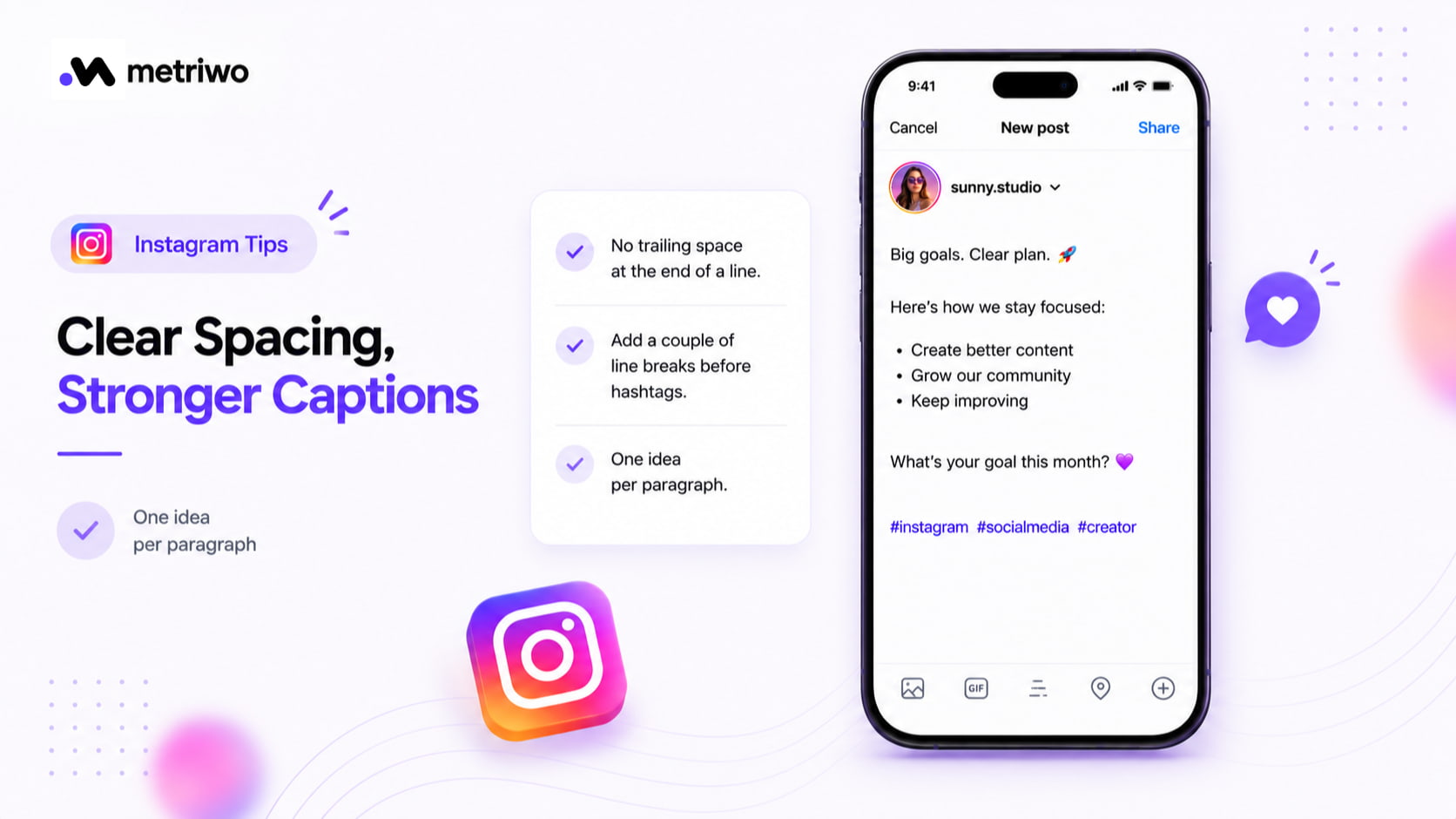
No trailing space at the end of a line.
A couple of line breaks between your caption and your hashtags.
One idea per paragraph.
Quick Comparison
|
Method |
Best for |
Reliability |
|
Notes app paste |
Bio and captions, any device |
High |
|
Invisible character |
Stubborn lines that keep collapsing |
High |
|
Desktop (instagram.com) |
Bio specifically |
Highest |
| Facebook composer / scheduler | Captions, if posting ahead |
Medium to high |
When It Still Won’t Work
A stray space or emoji right at the end of a line is the most common culprit, remove it and try again.
iPhone autocorrect sometimes eats characters mid-paste, so paste rather than retype.
Bios and captions behave slightly differently since the bio field is more limited, so a fix that works in one doesn’t always carry over to the other.
Old tricks like copying from Notepad on Windows don’t hold up anymore, stick to the methods above.
Formatting Patterns Worth Testing
Hook, line break, supporting point, call to action, hashtags at the bottom, tends to perform well because it matches how people actually skim on a phone. It’s also worth checking how accounts in your niche structure their captions. Metriwo’s competitor tracking makes that easy to spot across accounts you’re benchmarking against, rather than screenshotting one post at a time.
Try It, Then Track It
Format your next few posts this way, then check Metriwo’s analytics to see whether reach or engagement moves. Small formatting fixes add up, especially once they’re part of a consistent social media management routine rather than something you fix post by post.

Try Metriwo free to analyze how your formatted posts perform, and schedule content that keeps its spacing intact.