
Opening TikTok whenever a video needs to go live interrupts other work. Captions get rushed, approvals arrive late, and your content calendar becomes a list of intentions rather than a reliable publishing plan.
Yes, you can schedule TikTok posts through eligible native tools or a compatible external scheduler. Metriwo also advertises TikTok scheduling, although its exact account workflow should be checked before committing a campaign.
Native scheduling can suit straightforward publishing. Larger teams may need shared calendars, account separation, approvals, and coordinated posts across networks.
Start with the native workflow below, then compare mobile options, scheduling limits, review requirements, and the checks that keep a prepared post from becoming a publishing mistake.
Ways to Schedule TikTok Posts
| Method | Free? | Main Limitation | Best for |
| TikTok native scheduler | Yes | Account availability | Individual accounts |
| Metriwo | Check current plan | Workflow needs testing | Evaluate for organized publishing |
| Other schedulers | Varies | Tool dependent | Teams and agencies |
Can You Schedule TikTok Posts?
Yes, but availability depends on the account and publishing surface. TikTok’s Web Business Suite guidance confirms scheduling for Business Accounts.
Its broader Studio guidance includes Personal and Business Accounts, with features varying by region and interface. Check your actual account rather than assuming every account has identical controls.
External tools may publish directly or hand the post back to you for completion. Confirm supported settings and delivery mode before relying on unattended publishing.
How to Schedule TikTok Posts Natively
These steps follow TikTok’s published guidance. Button placement can vary between upload interfaces.
Step 1: Log In on Desktop
Open TikTok in a browser and choose Upload, or enter TikTok Studio. Confirm the profile before preparing content.
Step 2: Upload Your Content
Upload your finished video. TikTok’s Studio help describes caption, cover, audience, comment, reuse, and sound copyright controls.
Use the options your account exposes. Review mentions and hashtags, plus commercial or other disclosure settings where applicable.
Step 3: Enable Scheduling
Select the scheduling control after preparing the upload. If it is absent, verify account eligibility and the publishing interface.
Step 4: Choose the Date and Time
Choose an available date and exact time. The documented web scheduler uses your computer’s time zone. Check this carefully when traveling or coordinating another market.
Step 5: Review the Post
Play the entire video and inspect:
- Caption, hashtags, and mentions
- Cover and intended audience
- Interaction permissions and disclosures
- Date, time, and time zone
Step 6: Schedule the Post
Submit the schedule and confirm its entry. TikTok’s documented workflow places scheduled content alongside drafts in the profile view.
How to schedule social media posts effectively starts with confirming the saved result, not merely clicking a button.
Can You Schedule TikTok Posts from Mobile?
Yes, mobile scheduling exists, but distinguish the main TikTok app from TikTok Studio. The official TikTok Studio iPhone release history introduced scheduled posts in March 2025. Availability still needs checking on your device.
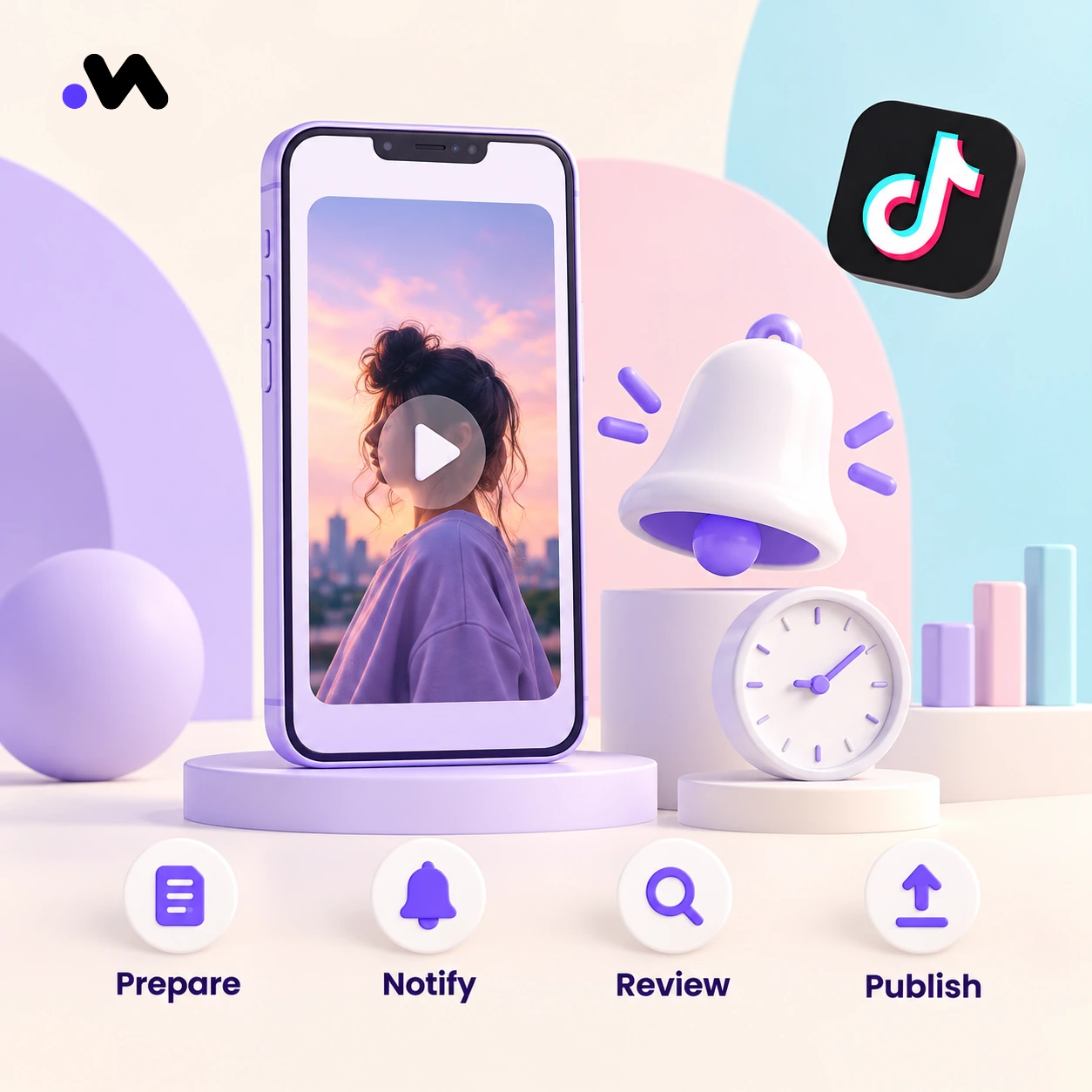
An external mobile workflow may publish automatically or require your intervention. For a notification workflow:
Step 1: Prepare the Post
Save the media, caption, and intended publishing time in the chosen tool.
Step 2: Receive the Notification
The assigned publisher opens the reminder or TikTok inbox notification, depending on the integration.
Step 3: Review in TikTok
Complete available native edits and check account, sound, permissions, and disclosures.
Step 4: Publish the Post
Perform the final action in TikTok. A reminder alone does not publish anything.
TikTok Scheduling Limits You Should Know
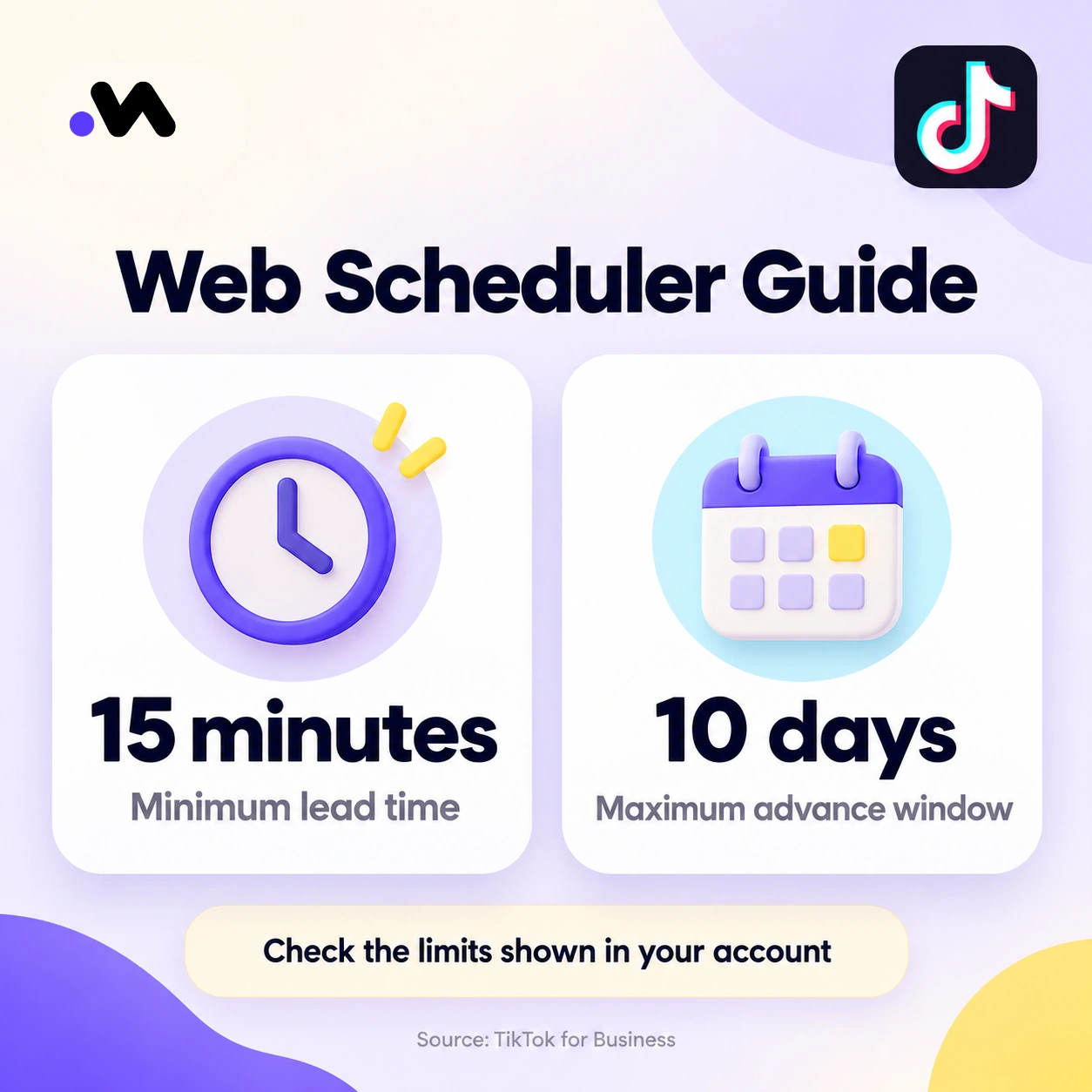
TikTok’s published web scheduling guide specifies 15 minutes to 10 days ahead and restrictions on editing scheduled content. Treat these as that documented workflow’s limits, not universal limits for every Studio surface.
That guide covers videos. TikTok’s Content Posting API also supports photos, but this does not establish photo scheduling support in every tool.
Bulk imports, shared approvals, and multiple account calendars require separate verification. Connecting an account does not guarantee access to every publishing feature.
Before scheduling:
- Confirm account eligibility
- Finish creative edits
- Check the device time zone
- Proofread the caption
- Test campaign destinations
Native TikTok Scheduling vs. Third Party Scheduling
| Capability | TikTok Native | Third Party Tools | Verify Before Use |
| Scheduling cost | Free | Varies | Current pricing |
| Advance window | Surface dependent | Tool dependent | Latest available date |
| Mobile workflow | Studio availability varies | Varies | Direct or reminder |
| Multiple accounts | Surface dependent | May be supported | Account limits |
| Team approvals | Check workflow | May be supported | Reviewer controls |
| Cross platform calendar | TikTok only | May be supported | Supported networks |
Can You Edit a Scheduled TikTok Post?
TikTok’s documented web workflow requires replacement rather than editing the scheduled video, caption, or time. Keep the original media and approved copy available.
Step 1: Find the Post
Locate the scheduled item and match its account, thumbnail, and publication time.
Step 2: Delete It
Remove only the incorrect scheduled item. Confirm it has disappeared before replacing it.
Step 3: Correct and Upload Again
Fix the source content and repeat your checks. External schedulers may allow changes before dispatch, but confirm their editing cutoff and which fields remain editable.
When Should You Use a Third Party TikTok Scheduler?
Consider another tool when the work around publishing becomes harder than scheduling itself.
Typical requirements include:
- Multiple TikTok accounts
- Longer planning horizons
- Shared campaign calendars
- Bulk content preparation
- Client reviews and approvals
- Coordinated publishing across networks
- Centralized performance reviews
- Assigned mobile publishers
Evaluate a Social media post scheduler tool against your actual requirements. A calendar does not automatically include approval controls, and batch preparation does not necessarily mean bulk scheduling.
How to Schedule TikTok Posts with Metriwo
Metriwo’s tiktok post scheduler tool page describes automated video publishing. The following is a preparation checklist, not a verified dashboard demonstration. Confirm the actual controls and delivery behavior in your workspace before using it for a campaign.
Step 1: Connect TikTok
Use the product’s TikTok connection flow if available. Review the authorization screen and confirm the intended account returns as connected. Establish supported account types before proceeding.
Step 2: Create a Post
Locate the publishing composer in your workspace. Confirm TikTok is available as a destination before adding campaign material.
Step 3: Select the Account
Check the displayed handle and avatar. Do not assume selecting multiple destinations includes multiple TikTok accounts or identical permissions.
Step 4: Upload and Prepare Content
Check which formats and fields appear for TikTok. Confirm video and photo support separately, along with captions, mentions, cover selection, privacy, comments, Duets, Stitches, and commercial disclosures.
Step 5: Preview and Review
Check cropping, sound, caption, and account identity. Record approval before scheduling; a preview or saved draft is not proof of a built in approval process.
Step 6: Choose the Date and Time
Confirm the displayed time zone and saved publication time. Check scheduling limits directly. Do not assume queues or recommended times exist for every account.
Step 7: Confirm the Schedule
Verify the item’s scheduled status and management options. Establish whether delivery is direct or requires a notification, then confirm the published result after the intended time.
Explore TikTok Scheduling with Metriwo
Review the available workflow before organizing your next content batch.
Tips for Creating a Better TikTok Schedule
Maintain a Shared Content Calendar
Keep campaign dates, content owners, and approval deadlines together. Check for gaps, overlapping messages, and excessive repetition before assigning publication times.
Find Your Audience’s Active Times
Your best time to post on tiktok depends on your audience. Compare similar videos across several publishing windows and review account analytics instead of adopting one universal hour.
Create a Clear Approval Process
Assign responsibility for:
- Video quality and caption
- Brand accuracy
- Copyright and disclosures
- Publishing time
Measure Performance Over Time
Track views, watch time, completion, engagement, shares, comments, follower growth, and conversions where available. Compare posts at similar ages. One successful upload cannot establish the best schedule.
Engage After Publication
Assign someone to monitor questions and comments. When evaluating a Social media inbox management tool , check supported TikTok interactions separately. Message support should not be assumed to include comment management.
Does Scheduling Affect Video Quality or Engagement?
Scheduling alone is not evidence of a quality or engagement penalty. Review the source file, any processing by the publishing tool, and the final uploaded result.
Evaluate creative quality, audience relevance, retention, caption context, timing, and audience response. Keep the source export when troubleshooting differences. Scheduling is an operational choice, not a promise of greater reach or an explanation for every weak post.
TikTok Scheduling Mistakes to Avoid
- Selecting the wrong account
- Using the wrong time zone
- Uploading unfinished media
- Skipping copyright checks
- Choosing an unclear cover
- Missing required disclosures
- Sharing broken campaign links
- Reusing visibly watermarked exports
- Ignoring comments
- Leaving outdated content scheduled
Review upcoming posts when offers change, campaigns pause, or a crisis makes planned content inappropriate. Assign one person responsibility for stopping publication when context changes.
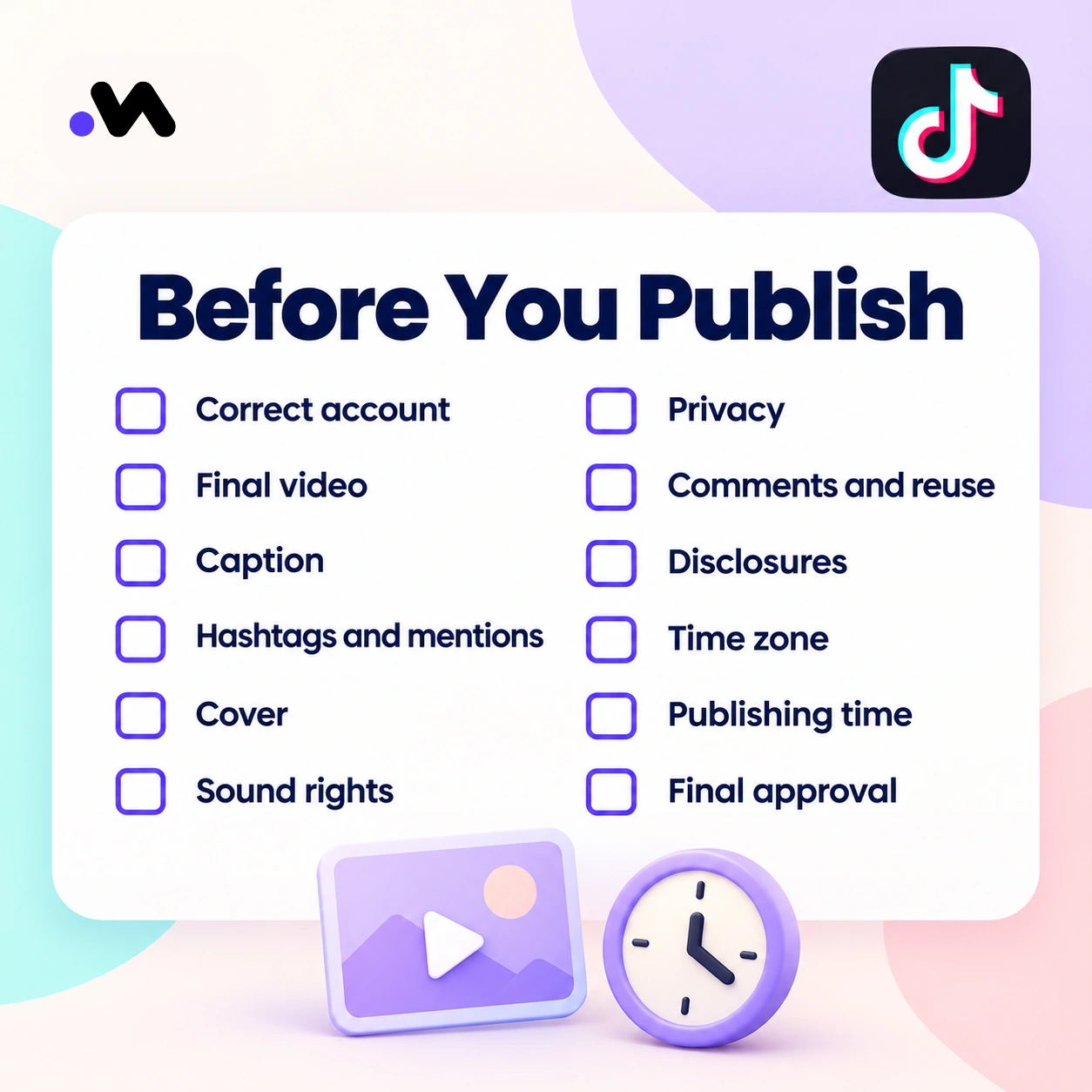
TikTok Pre Publishing Checklist
- Correct TikTok account selected
- Final video uploaded
- Caption proofread
- Hashtags and mentions checked
- Cover reviewed
- Sound and copyright confirmed
- Privacy selected
- Comments, Duets, and Stitches reviewed
- Disclosures completed
- Time zone checked
- Publishing time confirmed
- Final approval recorded