
Publishing every X post manually interrupts other work, especially when campaigns span accounts and time zones. Preparing content in advance gives you time to check details before a launch gets busy.
Yes, you can schedule X posts, formerly called Tweets, through native desktop tools or a compatible scheduling platform. Simple account workflows can start with X.com. Teams should also evaluate calendars, review processes, and account permissions.
This guide covers native scheduling, mobile options, important restrictions, and Metriwo’s observed publishing controls. It also explains what to verify before committing a post to the queue, including timing, accessibility, and coverage for replies.
Ways to Schedule X Posts
| Method | Free? | Main limitation | Best for |
| X.com scheduler | Yes | Individual preparation | One account |
| X Pro | Premium + required | X only | Multiple X feeds |
| Metriwo | Check current plan | X connection required | Organized preparation |
| Other schedulers | Varies | Features vary | Team workflows |
Can You Schedule Posts on X?
Yes. X documents scheduling through its desktop tools, including X Pro. Availability differs by publishing surface and content format.
Check scheduling support for your post type.
Verify mobile access separately.
Review content before confirming publication.
A composer offering a format does not necessarily mean it can schedule that format.
Why Schedule X Posts?
Scheduling helps you separate content preparation from publication. That matters when several messages need review before the same campaign starts.
- Batch writing and media preparation.
- Coordinate launch announcements.
- Cover different audience time zones.
- Test publishing windows.
- Reserve time for replies.
Keep space for timely updates. A complete queue is useful only while its posts remain accurate and relevant.
How to Schedule X Posts Natively
Use X.com in a desktop browser. The following follows X’s documented desktop workflow; labels and available controls can vary by account.
Step 1: Open the Post Composer
Sign in to the intended account and start a new post. Check the account identity before writing.
Step 2: Create Your X Post
Add your text and links, then supported media. Review mentions, image descriptions, and previews. Scheduling support for polls, threads, or other formats needs a separate check.
Step 3: Open the Scheduling Controls
Look for the scheduling control in the composer, commonly represented by a calendar and clock.
Step 4: Select the Date and Time
Choose the date and exact time. Read the displayed time zone and use the date range accepted by your current composer. Do not assume a universal advance window.
Step 5: Confirm the Schedule
Confirm your selection and check the publishing time displayed when you return to the composer.
Step 6: Review and Schedule
Recheck the account, copy, links, media, accessibility, and time before selecting Schedule. Confirm the post appears in scheduled content.
For broader campaign planning, see How to schedule social media posts.
Can You Schedule X Posts from Mobile?
Do not assume the native X app offers the desktop scheduling controls. A compatible scheduler may provide a mobile workflow, but verify whether it publishes automatically or sends a reminder requiring action.
Step 1: Open the Composer
Use your scheduler’s supported mobile interface.
Step 2: Select the Account
Check the destination X profile.
Step 3: Create the Post
Add supported content and inspect its preview.
Step 4: Choose the Time
Set the date, time, and time zone.
Step 5: Confirm the Schedule
Check the queued status and any notification instructions. These are generic steps, not a verified Metriwo mobile tutorial.
Confirm whether your mobile scheduler publishes directly or requires a reminder. This is not a Metriwo app screenshot.
X Scheduling Limits You Should Know
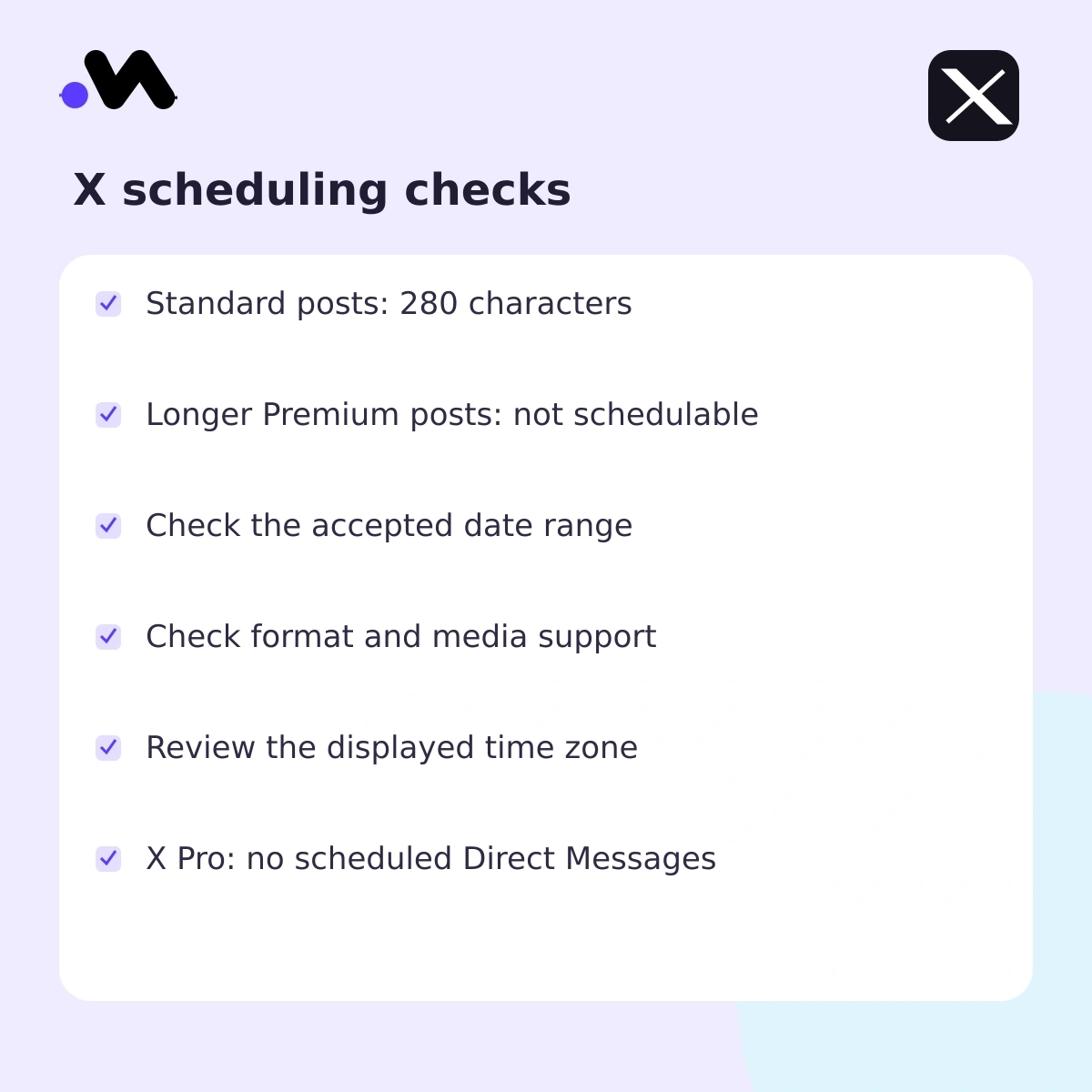
Standard posts have a 280 character limit. X’s Premium guidance says longer posts cannot be scheduled.
- Verify the accepted date range in your composer.
- Check media eligibility before scheduling.
- Test polls and threads separately.
- Prepare standard native posts individually.
- Check permissions for each account.
X Pro supports scheduled posts and a Scheduled column, but not scheduled Direct Messages. X lists X Pro under Premium+ features.
X.com, X Pro, Ads, and Media Studio are different publishing surfaces. Do not transfer an advertising workflow, media limit, or editing restriction from one to another.
Native X Scheduling vs. Third Party Scheduling
| Capability | X.com | External tools | Verify |
| Schedulimg cost | Free | Varies | Plan |
| Mobile workflow | Check app | Varies | Direct or reminder |
| Bulk preparation | Individual posts | May support imports | Format |
| Multiple accounts | Account switching | Varies | Limits |
| Team approvals | Separate review | May be available | Permissions |
| Cross platform calendar | No | May be available | Networks |
How to View and Manage Scheduled X Posts
Step 1: Open Scheduled Posts
Open the composer’s scheduling area and look for scheduled content. In X Pro, use its documented Scheduled column.
Step 2: Review the Queue
Check destination accounts and publishing times. A draft without a scheduled time is not a confirmed queue entry.
Step 3: Edit the Post
Open the entry and inspect its available editing controls. Save changes and verify the updated content.
Step 4: Reschedule
Change the date or time where supported, then confirm the new queue position.
Step 5: Delete
Remove an unwanted entry using its deletion control. Retain a copy first; do not assume recovery is available. Management options differ across X publishing tools.
When Should You Use a Third Party X Scheduler?
Start with the coordination problem. One account posting occasionally may need little beyond native scheduling. Teams may need:
- Shared calendars and client review.
- Several accounts and permission levels.
- Bulk preparation and media libraries.
- Reporting across campaigns.
Compare a Social media post scheduler tool against those requirements. Ask for a demonstration using your actual post formats before choosing a plan.
How to Schedule X Posts with Metriwo
Metriwo’s inspected dashboard showed social connection controls, a composer, drafts, scheduling inputs, and a calendar view. No X account was connected during this review, so X authorization and successful publication were not tested. The accompanying examples are illustrative.
Step 1: Connect X
Open social account management and find X (Twitter). Select Connect and review the authorization request. Continue only with the intended account and appropriate permissions; verify connection success before composing.
Step 2: Create a Post
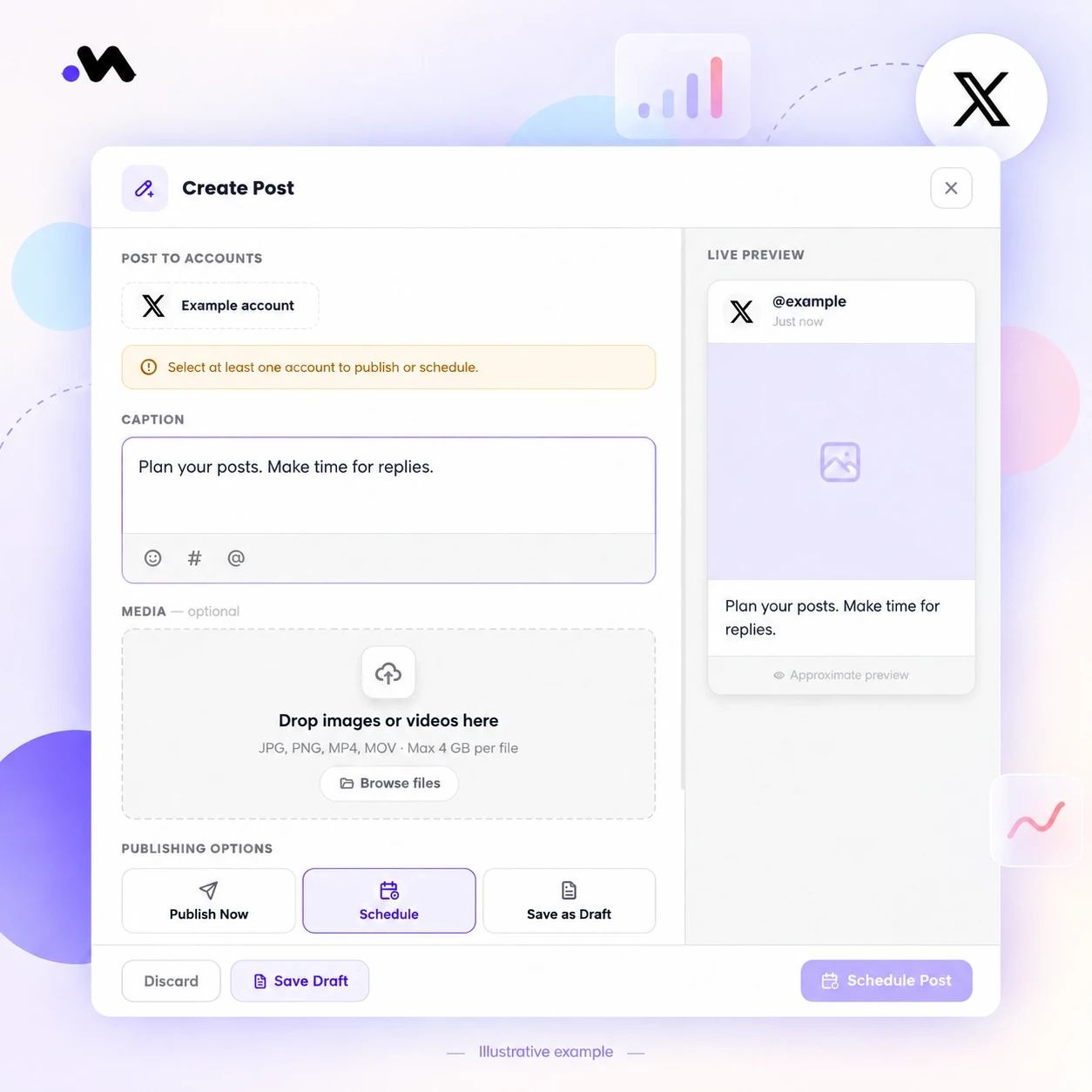
Open Publish and select Create Post. The observed composer contains account selection, a caption field, media upload, and preview.
Step 3: Select the Account
Use Post to Accounts to select a valid connected profile. The inspected composer prevented scheduling without a selected account. Resolve expired connections first.
Step 4: Add Content
Enter the caption and inspect any links, hashtags, and mentions. The general uploader listed JPG, PNG, MP4, and MOV. This does not establish X specific media eligibility or support for polls, threads, and longer posts.
Step 5: Preview and Review
Check the Live Preview, which is labeled approximate. Save Draft was available. Arrange any required review before scheduling; a team approval workflow was not verified.
Step 6: Choose Date and Time
Select Schedule, then set Date, Time, and Timezone. Check the intended local publishing time, including daylight saving changes.
Step 7: Schedule and Manage
The composer showed Schedule Post, while Publish offered Posts Feed and Calendar. With a valid X connection, confirm the resulting status and later publication. Direct publishing and X editing behavior require a connected account test.
Schedule X Posts with Metriwo
Explore the x post scheduler tool and verify the connected workflow before planning a campaign.
Can You Schedule Multiple X Posts at Once?
The standard native workflow prepares posts individually. Some external tools offer CSV imports, queues, or reusable drafts. Availability and import formats vary; Metriwo bulk upload was not verified.
Before importing, check:
- Destination accounts and duplicate content.
- Date format and time zone.
- Character limits and media links.
Test a small batch before loading an entire campaign.
Best Practices for Scheduling X Posts
Test Your Publishing Frequency
Choose a manageable starting frequency, then adjust using audience response and your capacity to reply.
Use Audience Specific Timing
The best time to post on x depends on your audience. Compare similar posts across several publishing windows.
Review the Scheduled Queue
Check links, campaign dates, duplicate copy, and overlapping announcements regularly.
Maintain Content Variety
Mix supported scheduled formats with conversations and timely posts. Confirm eligibility before planning polls or threads.
Review Content During Major Events
Pause or revise content that becomes inaccurate or inappropriate as circumstances change.
Monitor Performance
Compare impressions, replies, reposts, clicks, and conversions over time. One unusually successful post does not establish a reliable schedule.
What to Look for in an X Scheduling Tool
Match the tool to account volume, team responsibilities, and reporting needs.
- Clear account permissions.
- Reliable time zone controls.
- Appropriate media and thread support.
- Drafts and review options.
- Calendar and bulk preparation.
- Relevant analytics and engagement tools.
Verify each requirement in the plan you intend to use.
Does Scheduling X Posts Affect Engagement?
Scheduling is not evidence of an automatic engagement penalty or boost. Evaluate relevance, creative quality, timing, and audience response together rather than attributing every change to the publishing method.
Assign someone to monitor replies after publication. A Social media inbox management tool can be worth evaluating when conversations become difficult to track, but verify support for the channels you need.
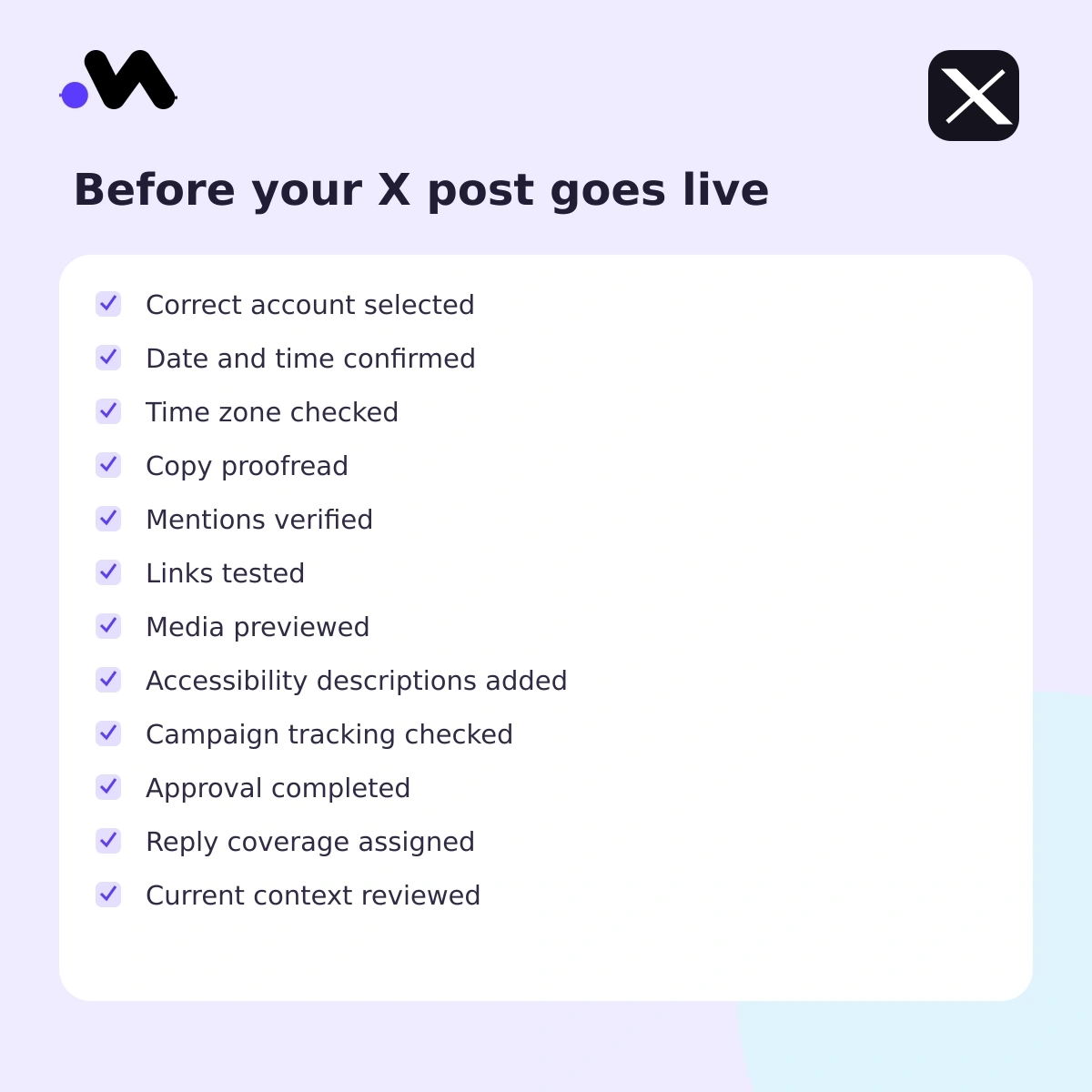
Pre Publishing Checklist
- Correct account selected.
- Date and time confirmed.
- Time zone checked.
- Copy proofread.
- Mentions verified.
- Links tested.
- Media previewed.
- Accessibility descriptions added.
- Campaign tracking checked.
- Approval completed.
- Reply coverage assigned.
- Current context reviewed.